Monday, June 6, 2011

Create 5 Table Cell Data in Single Column in a PDF File

Jar : PDFBox from Apache

http://www.javaapionline.com/2011/06/create-pdf-document-using-java-pdfbox.html


An Extension to the earlier program.
Create 5 Rows of Data Cells

I decided to add in 5 Cells in a Single Column

Here's how the code will look.

/*
 * Author : Ajith Moni
 * Date : June 6th 2011
 */
import java.io.IOException;

import org.apache.pdfbox.exceptions.COSVisitorException;
import org.apache.pdfbox.pdmodel.PDDocument;
import org.apache.pdfbox.pdmodel.PDPage;
import org.apache.pdfbox.pdmodel.edit.PDPageContentStream;
import org.apache.pdfbox.pdmodel.font.PDFont;
import org.apache.pdfbox.pdmodel.font.PDType1Font;


public class PDFTableSingleColumn {

    public static void main(String[] args)
            throws IOException, COSVisitorException {
       
        // Create the PDF Document
        PDDocument document =new PDDocument();
        // Create a Page of the PDF Document
        PDPage page1=new PDPage();
        // Add the created page to the PDF Document
        document.addPage( page1 );
       
        // Set Font Type
        PDFont font = PDType1Font.HELVETICA_BOLD;
       
        // Create a Stream for the Document and page
        PDPageContentStream contentStream = new PDPageContentStream(document, page1);
       
        // Begin Text
        contentStream.beginText();
        // The X and Y co-ordinates start from the end of the page
        // Use the following methods to get the results -
        // might vary on your machine.
        // 612.0
        // 792.0
        System.out.println(page1.getArtBox().getUpperRightX());
        System.out.println(page1.getArtBox().getUpperRightY());
       
        // Margin of the Document - X Value
        int margin=50;
       
        // Max val - 792 - Set Margin from top - Y Value
        int y1=750;
        int y2=750;
       
        // Dimensions of the cell to draw
        // length  - length of the line
        // breadth - height of the cell
        int length=100; 
        int breadth=30;
       
       
        // draw 5 cells having single column
            for(int rows=0;rows<5;rows++)
            {
                // draw the horizontal lines
                contentStream.drawLine(margin, y1, margin+length, y2);
                // breadth
                contentStream.drawLine(margin, y1, margin, y1-breadth);
                contentStream.drawLine(margin+length, y1, margin+length, y2-breadth);
                y2-=breadth;
                y1=y2;
            }
            // Draw the closing of the Cell
            contentStream.drawLine(margin, y1, margin+length, y2);
           
       
                // Close the Text
                contentStream.endText();

                // Closing the Connection is Important
                // especially when using multiple pages
                contentStream.close();
       
        document.save("D:\\Trash\\PDFTableSingleColumn.pdf");
       
        document.close();   


    }
   
}
For Creating a Compelete Table with N Rows and N columns, See the Article  :
http://www.javaapionline.com/2011/06/create-table-with-rows-and-columns-in.html
Also Read :

Create Table with Rows and Columns in a PDF File

Jar Used : PDFBox from Apache

http://www.javaapionline.com/2011/06/create-pdf-document-using-java-pdfbox.html

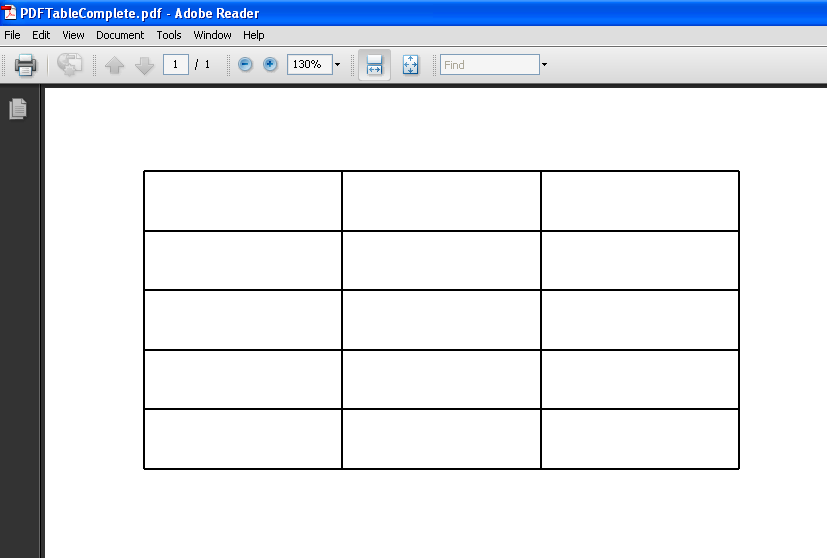
The following code is used to Create a Table in PDF with 5 Rows and 3 Columns.


/*
 * Author : Ajith Moni
 * Date : June 6th 2011
 */
import java.io.IOException;

import org.apache.pdfbox.exceptions.COSVisitorException;
import org.apache.pdfbox.pdmodel.PDDocument;
import org.apache.pdfbox.pdmodel.PDPage;
import org.apache.pdfbox.pdmodel.edit.PDPageContentStream;
import org.apache.pdfbox.pdmodel.font.PDFont;
import org.apache.pdfbox.pdmodel.font.PDType1Font;


public class PDFTableComplete {

    public static void main(String[] args)
            throws IOException, COSVisitorException {
       
        // Create the PDF Document
        PDDocument document =new PDDocument();
        // Create a Page of the PDF Document
        PDPage page1=new PDPage();
        // Add the created page to the PDF Document
        document.addPage( page1 );
       
        // Set Font Type
        PDFont font = PDType1Font.HELVETICA_BOLD;
       
        // Create a Stream for the Document and page
        PDPageContentStream contentStream = new PDPageContentStream(document, page1);
       
        // Begin Text
        contentStream.beginText();
        // The X and Y co-ordinates start from the end of the page
        // Use the following methods to get the results -
        // might vary on your machine.
        // 612.0
        // 792.0
        System.out.println(page1.getArtBox().getUpperRightX());
        System.out.println(page1.getArtBox().getUpperRightY());
       
        // Margin of the Document - X Value
        int margin=50;
       
        // Max val - 792 - Set Margin from top - Y Value
        int y1=750;
        int y2=750;
       
        // Dimensions of the cell to draw
        // length  - length of the line
        // breadth - height of the cell
        int length=100; 
        int breadth=30;


            // For Each Column Draw the length and Width
            for(int cols=0;cols<3;cols++)
            {
                // draw length line
                // draw breadth
               
                // draw rows
                for(int rows=0;rows<5;rows++)
                {
                    // draw the horizontal lines
                    contentStream.drawLine(margin, y1, margin+length, y2);
                    // breadth
                    contentStream.drawLine(margin, y1, margin, y1-breadth);
                    contentStream.drawLine(margin+length, y1, margin+length, y2-breadth);
                    y2-=breadth;
                    y1=y2;
                }
                contentStream.drawLine(margin, y1, margin+length, y2);
                margin=margin+length;
                y1=y2=750;
            }
       

                // Close the Text
                contentStream.endText();

                // Closing the Connection is Important
                // especially when using multiple pages
                contentStream.close();
       
        document.save("D:\\Trash\\PDFTableComplete.pdf");
       
        document.close();   


    }
   
}

Sunday, June 5, 2011

Create a Table Data into Cell in PDF

Now that i have been able to create text into the document. I thought entering Table Data into PDF could be of more help.

Just in Case You missed out the related article, you can check it out here
http://www.javaapionline.com/2011/06/create-pdf-document-using-java-pdfbox.html

Writing the entire code for creating Table like data Could be too complex to understand, so I have narrowed down the problem such that
  • I create a single cell in a PDF document and display text within the cell. You could extend and advance the logic to fit it to your needs.

/*
 * Author : Ajith Moni
 * Date : June 5th 2011
 */
import java.io.IOException;

import org.apache.pdfbox.exceptions.COSVisitorException;
import org.apache.pdfbox.pdmodel.PDDocument;
import org.apache.pdfbox.pdmodel.PDPage;
import org.apache.pdfbox.pdmodel.edit.PDPageContentStream;
import org.apache.pdfbox.pdmodel.font.PDFont;
import org.apache.pdfbox.pdmodel.font.PDType1Font;


public class PDFTest1 {

    public static void main(String[] args)
            throws IOException, COSVisitorException {
       
        // Create the PDF Document
        PDDocument document =new PDDocument();
        // Create a Page of the PDF Document
        PDPage page1=new PDPage();
        // Add the created page to the PDF Document
        document.addPage( page1 );
       
        // Set Font Type
        PDFont font = PDType1Font.HELVETICA_BOLD;
       
        // Create a Stream for the Document and page
        PDPageContentStream contentStream = new PDPageContentStream(document, page1);
       
        // Begin Text
        contentStream.beginText();
        // The X and Y co-ordinates start from the end of the page
        // Use the following methods to get the results -
        // might vary on your machine.
        // 612.0
        // 792.0
        System.out.println(page1.getArtBox().getUpperRightX());
        System.out.println(page1.getArtBox().getUpperRightY());
       
        // Margin of the Document - X Value
        int margin=50;
       
        // Max val - 792 - Set Margin from top - Y Value
        int y1=750;
        int y2=750;
       
        // Dimensions of the cell to draw
        // length  - length of the line
        // breadth - height of the cell
        int length=100; 
        int breadth=50;
       
           
        // draw from left to right
        // ______________
       
        contentStream.drawLine(margin, y1, margin+length, y2);
       
        //draw from right to down - using breadth of rectangle
        //    ______________
        //                                |
       
        contentStream.drawLine(margin+length, y2, margin+length, y2-breadth);
        //draw line from left to right
        //    ______________
        //    ______________|
       
        contentStream.drawLine(margin,y1-breadth,margin+length,y2-breadth);
        // draw line from the remaining line
        //     ______________
        //    |______________|
        contentStream.drawLine(margin, y1, margin, y2-breadth);
   
       
        /*
         *  Draw text within the cell
         *  int length=100;
         *  int breadth=50;
         */
        // Setting Font is very important, else the text will not be displayed.
        contentStream.setFont(PDType1Font.HELVETICA_BOLD,12);
        contentStream.moveTextPositionByAmount(margin+30, y1-30);
        contentStream.drawString("Text");
        // Close the Text
        contentStream.endText();

        // Closing the Connection is Important
        // especially when using multiple pages
        contentStream.close();

        document.save("D:\\Trash\\PDFTableCell.pdf");
       
        document.close();   


    }
   
}

Create a PDF Document using Java PDFbox

Weekend Time,  Scratching my head to learn something new.
I'm glad I did something at least i feel i have. :-)

Something was in my head, what if i need to code to create a PDF document at some point in my life ???

I was aware of Apache's POI being used to handle Excel Sheets, tried a sample script then thought what if i need to create a pdf file.

I am glad i tried it. Okay, lets get on with why we are or rather why you are here.
Check Out :   Apache PDFBox

Download link for the jar file :  http://pdfbox.apache.org/download.html

I downloaded the version pdfbox-app-1.5.0.jar. Please always download a stable download, avoids we being testers where you expecting things to work for first time. You would not be wanting to do a QA job right ;-) especially when it's someone else's product.

Java Development Environment :

I Choose Eclipse, it makes my work simple. I strongly suggest readers to use the same, saves a lot of time researching how stuff works ( avoids the ant and stuff that scare you over the net).


  • Create a New Project named "PDF Test"
  • In the Package Explorer, Right Click > Properties
  • Go to Java Build Path
  • Select Libraries Tab
  • Click on "Add External Jars"

Lets say you have saved your jar  pdfbox-app-1.5.0.jar at location D:\Jars\pdfbox-app-1.5.0.jar
Browse and select the jar.

Click Okay.
You are good to go.

Now Create a Sample Java file as follows. I've named it PDFTest


import java.io.IOException;

import org.apache.pdfbox.exceptions.COSVisitorException;
import org.apache.pdfbox.pdmodel.PDDocument;
import org.apache.pdfbox.pdmodel.PDPage;
import org.apache.pdfbox.pdmodel.edit.PDPageContentStream;
import org.apache.pdfbox.pdmodel.font.PDFont;
import org.apache.pdfbox.pdmodel.font.PDType1Font;


public class PDFTest {

    public static void main(String[] args) throws IOException, COSVisitorException {
       
       
        PDDocument document =new PDDocument();
       
        PDPage page = new PDPage();
        document.addPage( page );
       
        PDFont font = PDType1Font.HELVETICA_BOLD;
        PDPageContentStream contentStream = new PDPageContentStream(document, page);
       
        contentStream.beginText();
        contentStream.setFont( font, 12 );
        //contentStream.moveTextPositionByAmount( 0, 700 );
        contentStream.moveTextPositionByAmount( 10, 700 );
        contentStream.drawString( "Hello World" );
        contentStream.endText();
        contentStream.close();

        document.save("D:\\BlankPage.pdf");
       
        document.close();
        document.close();


    }
}


You can view the file under the D drive in the above mentioned example.

I hope this gives a confidence boost that at least you can print a Hello World into a PDF file before exploring it further.

I tried extending to create table like data, so I've taken a sample version of it to create a Single Cell with Value in it.

http://www.javaapionline.com/2011/06/create-table-data-into-cell-in-pdf.html
Ciao for now
Regards,
Ajith Moni

Monday, May 16, 2011

Lovely Wedding Song & performance

I loved every bit of it ... I wish I wish I'll be able to do so when i get married

Java IO - File Size

package file_space;
import java.io.*;
public class file_size {


public long file_size_bytes(long file_size)
{
return (long) (file_size);
}

public long file_size_KB(long file_size)
{
return (file_size/1024);
}

public long file_size_MB(long file_size)
{
return (file_size/1024/1024);
}

public long file_size_GB(long file_size)
{
return (file_size/1024/1024/1024);
}

public static void sop(Object str)
{
System.out.println("File Size on Drive is "+str);
}
public static void main(String args[])
{
File file=new File("files/file_txt.txt");
//System.out.println(file.exists());
//System.out.println(file.getAbsolutePath());

//Long bytes=file.length();
Long bytes=file.getFreeSpace();
file_size fs=new file_size();

sop(fs.file_size_bytes(bytes)+" Bytes");
sop(fs.file_size_KB(bytes)+" KB");
sop(fs.file_size_MB(bytes)+" MB");
sop(fs.file_size_GB(bytes)+" GB");

}


}

Saturday, May 14, 2011

What is a test case?

Test Case


The very word "testcase" to a lay person could be expanded as "Testing" a "Case".
A Case is an occurrence of sequence of steps leading to an observation(output).

Testing is synonymous with verification and validation of the outcome of the sequence of steps.

Putting together these two definitions, we can further simplify and elaborate test case as
"A sequence of steps that performed leads to an observation that needs to be verified for its validity".


Test Case is a term coined by the field of Software Engineering. Its purpose is to drill down to a simpler units of tests. You could check for the definition defined by wikipedia over here


Example :

When you to a pharmacy to buy a drug(medicine), you verify the M.R.P(Maximum Retail Price) and the Expiry Date of the drug(medicine) purchased.

Test Cases for a Drug purchased would then look like :
1) Verify that the Selling Price of the Drug by the pharmacy <= M.R.P of the drug being sold
2) Verify that the Date of Expiry is lesser than today's date.

Saturday, April 23, 2011

As we gather in this place today - Don Moen

As we gather in this place today
Holyspirit come and have your way
Have your way
As we lay aside our own desires
Sweep across our hearts with Holy fire
Have your way


chorus:
This is your house your home
We welcome you Lord we welcome you
This is your house your home
We welcome you today

As we offer up our hearts and lives
Let them be a living sacrifice
Have your way
Be glorified in everything you do
Be glorified in everything we say
Have your way

This is your house your home
We welcome you Lord we welcome you
This is you House your home
We welcom you today
As we pray Oh Lord draw near
It's your voice we long to hear

Lord have mercy - Easter - You were sent to heal the contrite

You were sent to heal the contrite,
Lord have mercy(2)

Lo-ord have on us Lord have mercy

You came to call the sinners too, Christ have mercy (2)

Chri-i-ist have mercy
Christ have mercy

You plead for us at the right hand, the right hand of god

Lord have mercy
Lord have mercy

Lord god have mercy
Lord have mercy on us
Lord have mercy

Lord Have mercy on us - Easter Songs

You were sent to heal the contrite:
Lord, have mercy.
Lord, have mercy on us.

You came to call sinners:
Christ, have mercy.
Christ, have mercy on us.

You plead for us at the right hand of the Father:
Lord, have mercy. Lord, have mercy.
Lord, have mercy on us.

Courtesy : http://www.spiritandsong.com/compositions/16552

Praise my soul - Easter Song - Gloria

Praise my soul the might king of heaven tribute to him bring
ransomed healed restored and all forgiven praise to him now sing

chorus:
then glory to our king sing all ye joyful strain
out voice will ever ring for his saving love form ne

praise him for his grace and for his favour when you were distressed
praise him still the same and sing forever may his name be blessed

father like he loves and ever spares us weak we are he knows
in his hands he ever gently bears us keeps us from our foes.

angels hel us rightly to adore him whilst you see his face
sun and moon and earth now bow before him praise him time and space

Quote for the day

  • Don't try to fix people, just love them. Loving is what people need the most.

Thursday, April 21, 2011

QTP : Example of Compare Text using InStr

Example of Compare Text for InStr
' Returns position 6
MsgBox InStr(1,"Moni Ajith Kumar","Ajith")

' Returns position 0 -
MsgBox InStr(7,"Moni Ajith Kumar","Ajith")

QTP : InStr with vbTextCompare vbBinaryCompare

Example Set 2: - String -"Todays India" Find the value "in"
' Position Value is 8 for "in"
MsgBox "Position of ""in"" is "& Instr(1,"Todays India","in",vbTextCompare)

' Returns Position Value 8
MsgBox "Position of ""In"" is "& Instr(1,"Todays India","In",vbTextCompare)

' Returns Position Value 0
MsgBox "Position of ""in"" is "& Instr(1,"Todays India","in",vbBinaryCompare)

' Returns Position Value 8
MsgBox "Position of ""In"" is "& Instr(1,"Todays India","In",vbBinaryCompare)

Example Set 2: Change Start position of Compare Text
' Returns 6
MsgBox InStr(1,"Moni Ajith Kumar","Ajith")
' Returns 0 -
MsgBox InStr(7,"Moni Ajith Kumar","Ajith")

QTP Find the Position of a String

'Find Position of the String "is" in a sentence

v_input_string="The Request is 123456"
v_text_to_find="is"

' Store the position
v_pos=InStr(1,v_input_string,v_text_to_find)

MsgBox "Position of the String ""is"" is : "&v_pos

MsgBox "Position of ""in"" is"& Instr(1,"Todays Developing India","In")


OutPut:

Position of the String "is" is 13
Position of "in" is 19

Wednesday, April 20, 2011

QTP Count the number of links in a page

' Get The Object
Set htmlObjCol_l=Browser("Oracle Applications Home").Page("Login").Object.links

' Count
Dim i
i=0

For each  element in htmlObjCol_l
    ' HTML Anchor element
    'MsgBox typename(element)
    'MsgBox typename(element.toString())
    MsgBox element
    'MsgBox element.toString()
     'MsgBox element.Name
    'Print to the Report
    Reporter.ReportEvent micPass,"Link : "&i,""&element.toString()&vbCrLf&vbCrLF&element.Name
    i=i+1   
Next
MsgBox "No of Links "&i

QTP Count the Number of Open Browser Sessions

QTP Count the Number of Open Browser Sessions

' Create a Description Object

Dim iDesc

Set iDesc = Description.Create

' Assign the micclass Property
iDesc("micclass").value="browser"

'Get the child objects using getChildObjects
Set iObj = Desktop.ChildObjects(iDesc)

'Displays the count
MsgBox iObj.Count

QTP : GetTOProperties of Image Object

'Image
Set Img=Browser("Login").Page("Login").Image("American English")
Set tImg=Img.GetTOProperties()
MsgBox typename(tImg)
icount=tImg.Count-1

For i=0 to icount
 sName=tImg(i).Name
 sValue=tImg(i).Value
 Reporter.ReportEvent micPass,"Property:="&sName&"Value :="&sValue,""

Next